Running Your First Script
This tutorial walks you through running a OneClickExt script from the Spectrum console for the first time. By the end you will have launched a script against a device, confirmed the action, and reviewed the output, covering the complete end-to-end flow a user experiences every day.
Prerequisites
Before starting, make sure:
- OneClickExt is installed and the daemon is running (see Installation with Spectrum)
- At least one script is configured in
oneclickext.propsor an additional properties file - The script's menu entry is present in
$SPECROOT/custom/console/config/custom-menu-config.xml - You have a device visible in the Spectrum topology view to test against
Step 1 — Open the topology view
Log in to the Spectrum console and navigate to the topology view containing the device you want to test against. Right-click the device to open the context menu.
OneClickExt script entries appear directly in the context menu, labelled Run script <name>:
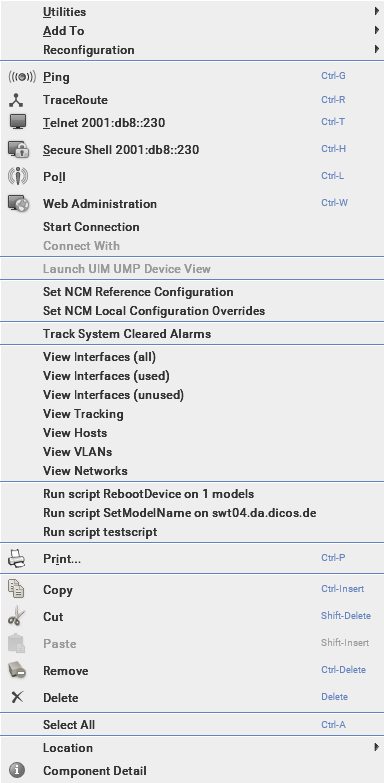
If no script entries appear, the client could not connect to the OneClickExt daemon at startup. See The client menu items are missing for diagnosis steps.
Step 2 — Open the script dialog
Click the script you want to run. A parameter dialog opens, showing the input fields defined for that script.
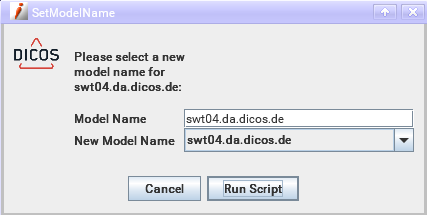
Fill in any editable fields. Read-only fields are pre-populated from Spectrum attributes of the selected device and cannot be changed.
Step 3 — Run the script
Click Run Script. If the script has a confirmation question configured (secquestion), a Yes/No dialog appears first, for example:
Are you sure you want to change the model name from swt04.da.dicos.de to swt04-new?
Click Yes to proceed, or No to cancel.
Step 4 — Review the output
The output window opens and streams the script's stdout in real time. When the script finishes, a completion dialog reports the exit code:
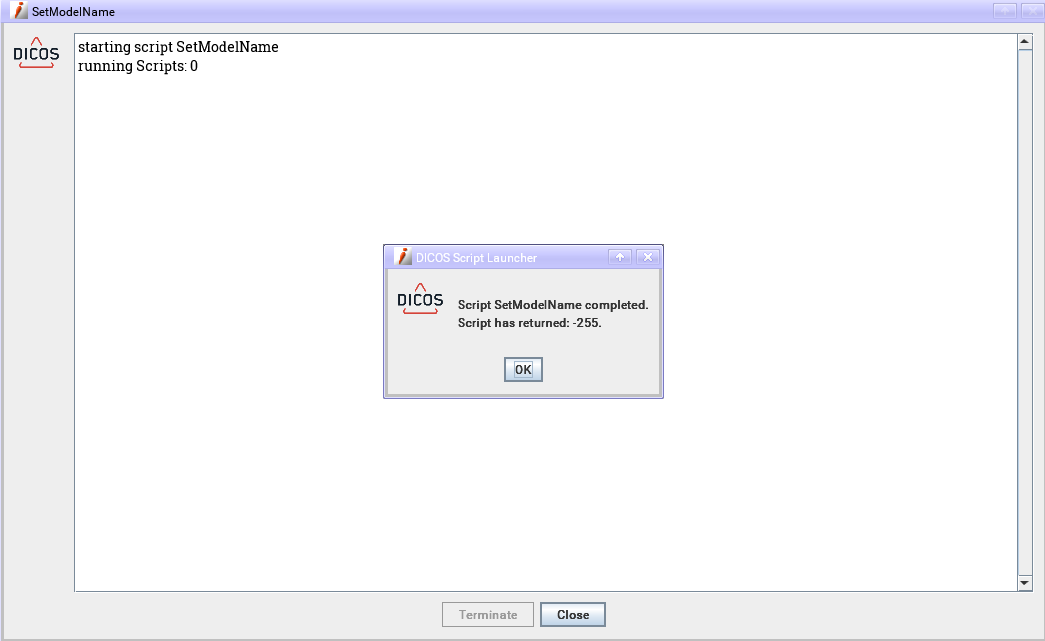
Click OK to dismiss the completion dialog, then Close to close the output window.
A negative exit code (such as -255) indicates the script returned an error. Exit codes can be formatted with colours to make results easier to read at a glance. See Exit code formatting.
What's next
- To add your own script, follow Defining a Script.
- To configure input parameters, validators, and combo boxes, see Parameters, Validators, and Actions.
- To restrict which users can run which scripts, see Permissions.