Troubleshooting
This page describes common problems encountered when installing, configuring, and running OneClickExt, along with their causes and solutions. It covers connectivity issues, script execution failures, and configuration loading problems.
Log files
The daemon uses Log4j 2, configured via $SPECROOT/DICOS/OneClickExt/conf/log4j.xml (standalone: $DCSROOT/DICOS/OneClickExt/conf/log4j.xml). By default, log output is written to:
$SPECROOT/DICOS/OneClickExt/logs/oneclickext.log
The log file rolls when it reaches 10 MB, keeping up to 10 rotated files (oneclickext-1.log, oneclickext-2.log, etc.).
To increase verbosity for debugging, change the log level to DEBUG in conf/log4j.xml:
<Root level="DEBUG">
Restart the daemon after changing the log configuration.
For the Script Server (Tomcat), logs appear in $SPECROOT/tomcat/logs/ (standalone: $DCSROOT/webtomcat/logs/).
Daemon connectivity issues
The client menu items are missing
The OneClickExt menu entries only appear if the client can successfully connect to the daemon over RMI at startup. If the connection fails silently, nothing appears in the menu.
Check:
- The daemon is running on the server host.
- The RMI port (default: 13689) is reachable from the Spectrum console host. Firewall rules between the console host and the server may block it.
- The
oneclickext.rmi.hostandoneclickext.rmi.portproperties are set correctly in$SPECROOT/tomcat/webapps/spectrum/oneclickext.jnlp. The installer writes these automatically from the values you entered duringsetup.sh. - The daemon log shows
Server startedwithout errors.
If the extension loads but individual script entries are missing, they have not yet been added to custom-menu-config.xml. See Defining a Script for how to configure script menu entries.
Daemon does not start after Spectrum restart
If the OneClickExt daemon is not running after a SpectroSERVER restart, the idb auto-ticket may have been stopped with cmdC localhost 2 ONECLICKEXT (STOP_AUTO_TICKET). This flag persists through Spectrum restarts and prevents the daemon from being brought up automatically by processd.
Verify the daemon is not running:
ps -fu spectrum | grep OneClickExtServer
If no process is found, start the daemon manually:
cd $SPECROOT/DICOS/OneClickExt/bin
./OneClickExt.sh &
Check the log to confirm startup was successful:
tail -20 $SPECROOT/DICOS/OneClickExt/logs/oneclickext.log
The log should end with Server started and connected to MOM.
Extension not loading after installation
If the CHECKONECLICKEXT ticket is running but the extension still does not load, a pre-patched JNLP file is available as a fallback at:
$SPECROOT/tomcat/webapps/spectrum/oneclick.jnlp.ext
Copy it over the original as a one-time manual step:
cp $SPECROOT/tomcat/webapps/spectrum/oneclick.jnlp.ext \
   $SPECROOT/tomcat/webapps/spectrum/oneclick.jnlp
Warning
This manual copy does not survive a Spectrum upgrade. If oneclick.jnlp is regenerated, the step must be repeated.
RMI connection refused
Server rmi://<host>:<port>/OneClickExt cannot be contacted
Causes:
- The daemon is not running. Start it.
- Wrong host or port in the client configuration.
- A firewall blocks the RMI port and the RMI connection port. Both ports must be open:
oneclickext.rmi.port(registry) andoneclickext.rmi.connport(object communication).
CORBA connection fails
The daemon log shows:
waiting for connection to MOM...
unable to connect to MOM!
Check:
oneclickext.mls.primary,oneclickext.mls.backup, andoneclickext.ss.hostare set correctly.- The Spectrum user (
oneclickext.ss.user) exists and has the required access rights in Spectrum. - SpectroSERVER is running.
The daemon retries the CORBA connection automatically. The retry interval and maximum count are configured with oneclickext.ss.retryIntervall and oneclickext.ss.retryCount.
Could not connect to OneClickExt-Daemon via OneClick WebApp
If you get the following error popup window when trying to execute a script via the OneClick WebApp console:
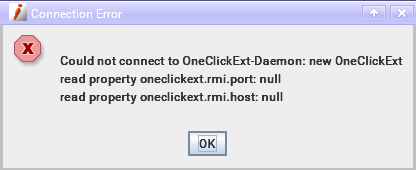
Make sure that you have added the RMI parameters to the Webswing JVM Arguments. Refer to the OneClick WebApp Integration for details.
Script execution issues
Script permission denied
For web-invoked scripts, a permission denial is logged as the user not being found in the scripts or groups configuration. Verify the user name matches what is configured under oneclickext.scripts.users.*.
Scriptlauncher not licensed
The daemon log shows:
Scriptlauncher not licensed!
Script license count exceeded!
The ScriptLauncher module is either not included in the license or the licensed number of scripts has been reached. The license file is located at $SPECROOT/DICOS/OneClickExt/bin/.license. Contact DICOS support if the license file is missing or does not include the sl module.
Script command not found
oneclickext.scripts.<scriptitem>.command
If the property is missing or the path does not resolve, the script will fail at execution time. Verify the path using the variable expansion pattern:
oneclickext.scripts.path: ../scripts/
oneclickext.scripts.ext:  .sh
oneclickext.scripts.RebootDevice.command: ${oneclickext.scripts.path}RebootDevice${oneclickext.scripts.ext}
Check that the resolved path points to an executable file that the daemon's OS user has permission to run.
Script output is empty
- Confirm
oneclickext.scripts.<scriptitem>.showOutput: true. - Confirm the script actually writes to stdout. Output sent only to stderr may not be captured depending on the script and OS.
- Check the encoding setting. A mismatch between
oneclickext.scripts.<scriptitem>.encodingand the script's actual output encoding will produce garbled or missing output. UseCP437for Windows batch files andUTF-8for Linux shell scripts.
New script does not appear after editing the properties file
The additional properties file (oneclickext.additional.props) is reloaded before each script call, but only for scripts that are already known. A completely new script item becomes visible only after the user closes and reopens the script dialog, or after restarting the daemon.
If the script still does not appear, confirm the properties file is listed in oneclickext.additional.props and that the file path is correct relative to the daemon's working directory.
Configuration issues
Properties file not loaded
The daemon searches for configuration files in a fixed order (see Configuration Load Order). If the expected file is not loaded, check:
- The file exists at the expected path.
- The daemon's working directory is correct (the
bin/directory is typical). - For additional properties files, the paths in
oneclickext.additional.propsare relative to the daemon's working directory.
The daemon logs each additional properties file it loads:
new properties <path> loaded.
If a file is listed but not found:
new properties <path> not found!
Changes to core settings take no effect
Core settings such as RMI ports, SpectroSERVER host, and thread pool size require a daemon restart to take effect. They are read once at startup and not reloaded.
Only the additional properties files (those listed under oneclickext.additional.props) are hot-reloaded.