First Run Wizard
To access DICOS API Gateway Manager, open your browser and point it to the IP address or hostname of the system you installed it on. On first start, DICOS API Gateway Manager will start a First Run Wizard that will guide you through the setup process:
Step 1: Set up an Administrative User
In this step, you are required to create the initial administrative user. Make sure you remember the username and password, as you need it to log in to DICOS API Gateway Manager. There must always be at least one local admin user. More can be created later.
Provide the following information
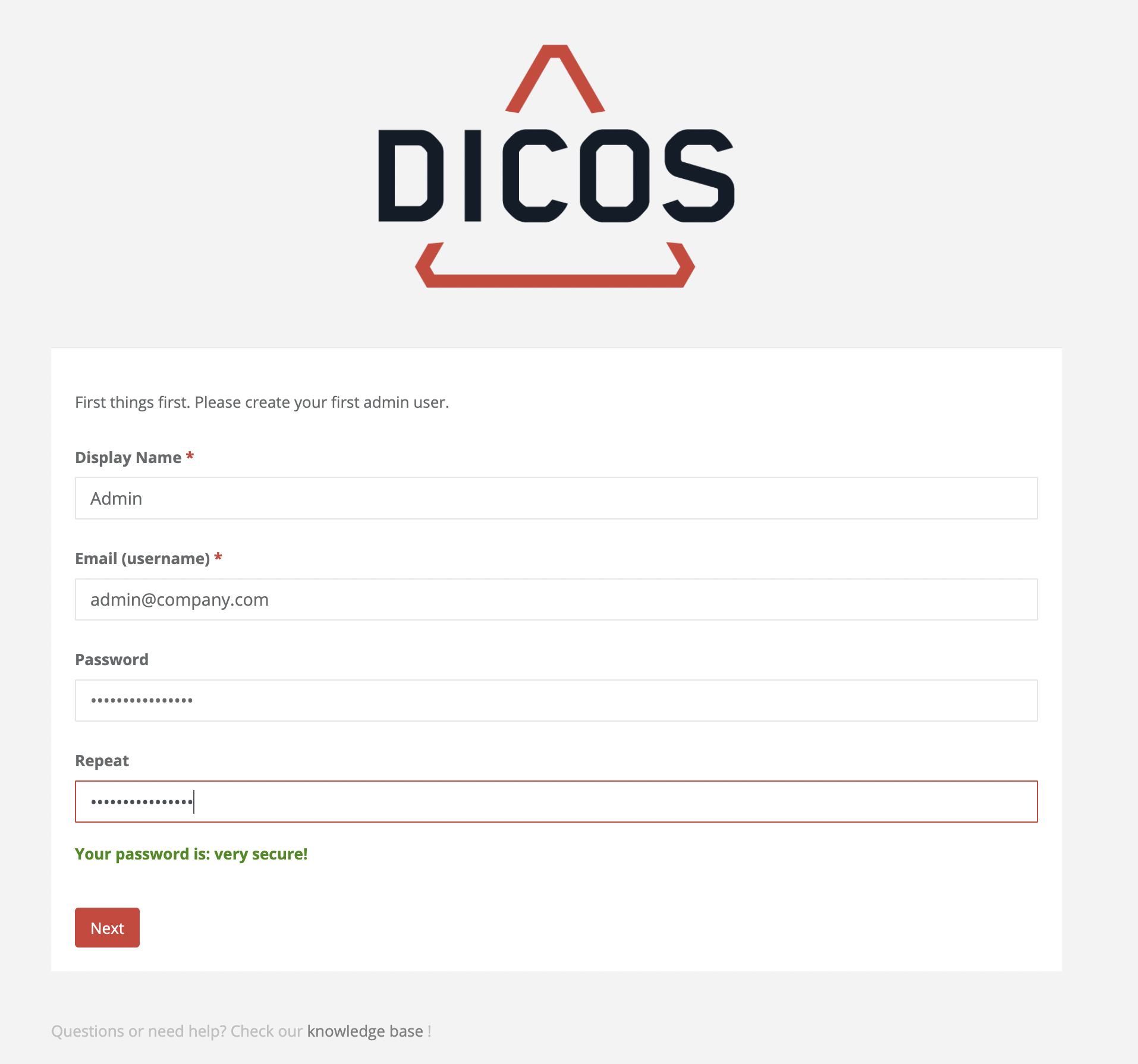
- Your Display Name
- Mandatory field
- A display name for this user
- Your E-Mail (username)
- Mandatory field
- E-Mail address to reset a lost password and the username for this user
- Password and Please repeat
- Mandatory fields
- Password for this user
Click Next
Step 2: Select an Authentication Method
You can choose between the internal user management, Microsoft ActiveDirectory (LDAP) or SAML 2.0 authentication. Select Internal user management if you do not want to set up LDAP or SAML for now. You can also do this later. Even if LDAP or SAML is set up, local users can still log in. Take a look at the user overview later to see which users there are and which origin they have.
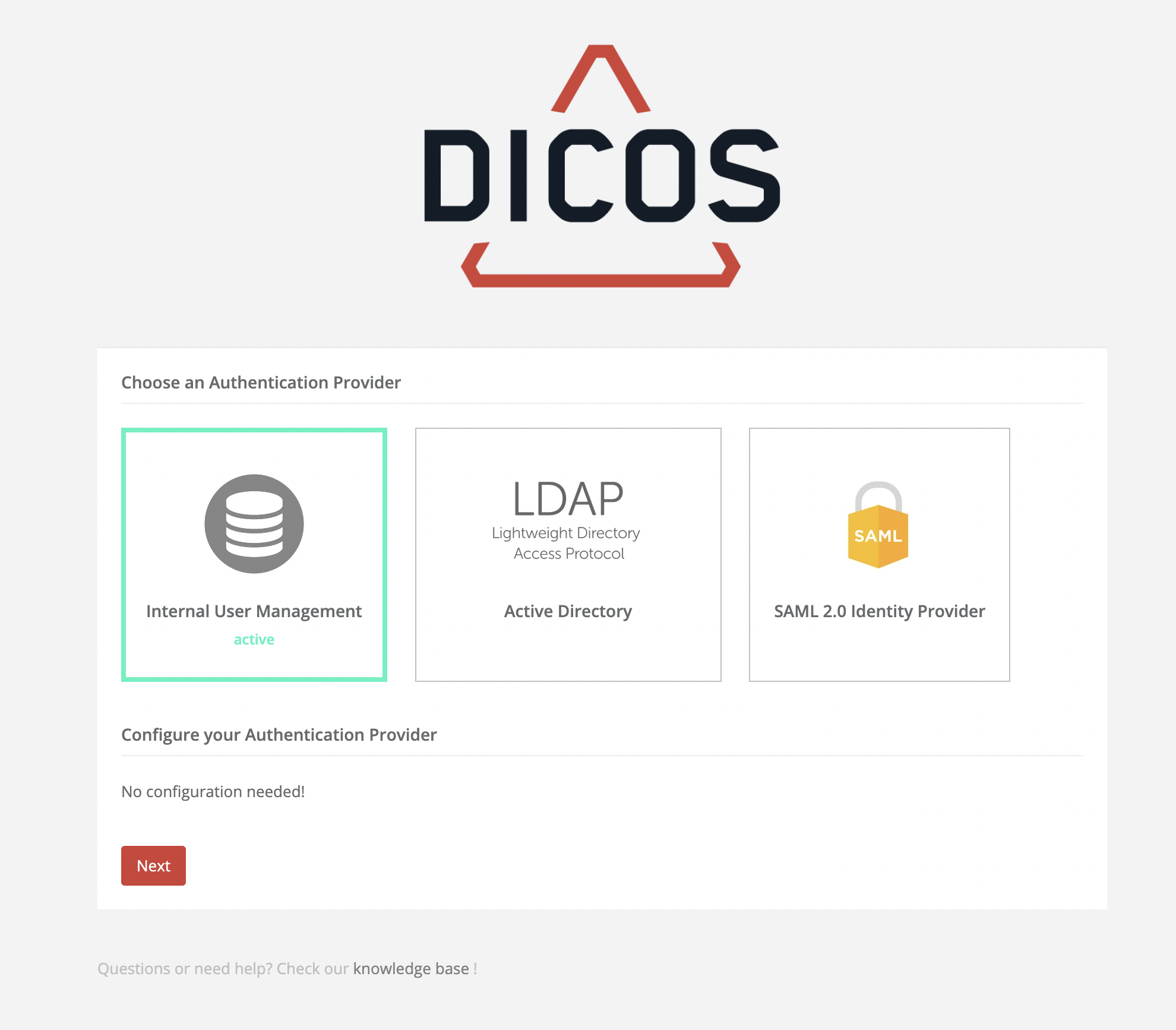
Select Internal User Management
Click Next
For configuring Microsoft ActiveDirectory (LDAP) or SAML 2.0 Identity Provider, please refer to
Authentication | ActiveDirectory (LDAP) and Authentication | SAML 2.0 Identity Provider
Step 3: Configure your SMTP Server
To send emails, DICOS API Gateway Manager needs to be able to connect to an SMTP server. If your SMTP server does not require authentication leave the user and password fields empty. This is needed to be able to send password reset emails. However, you can skip this step and configure it later.
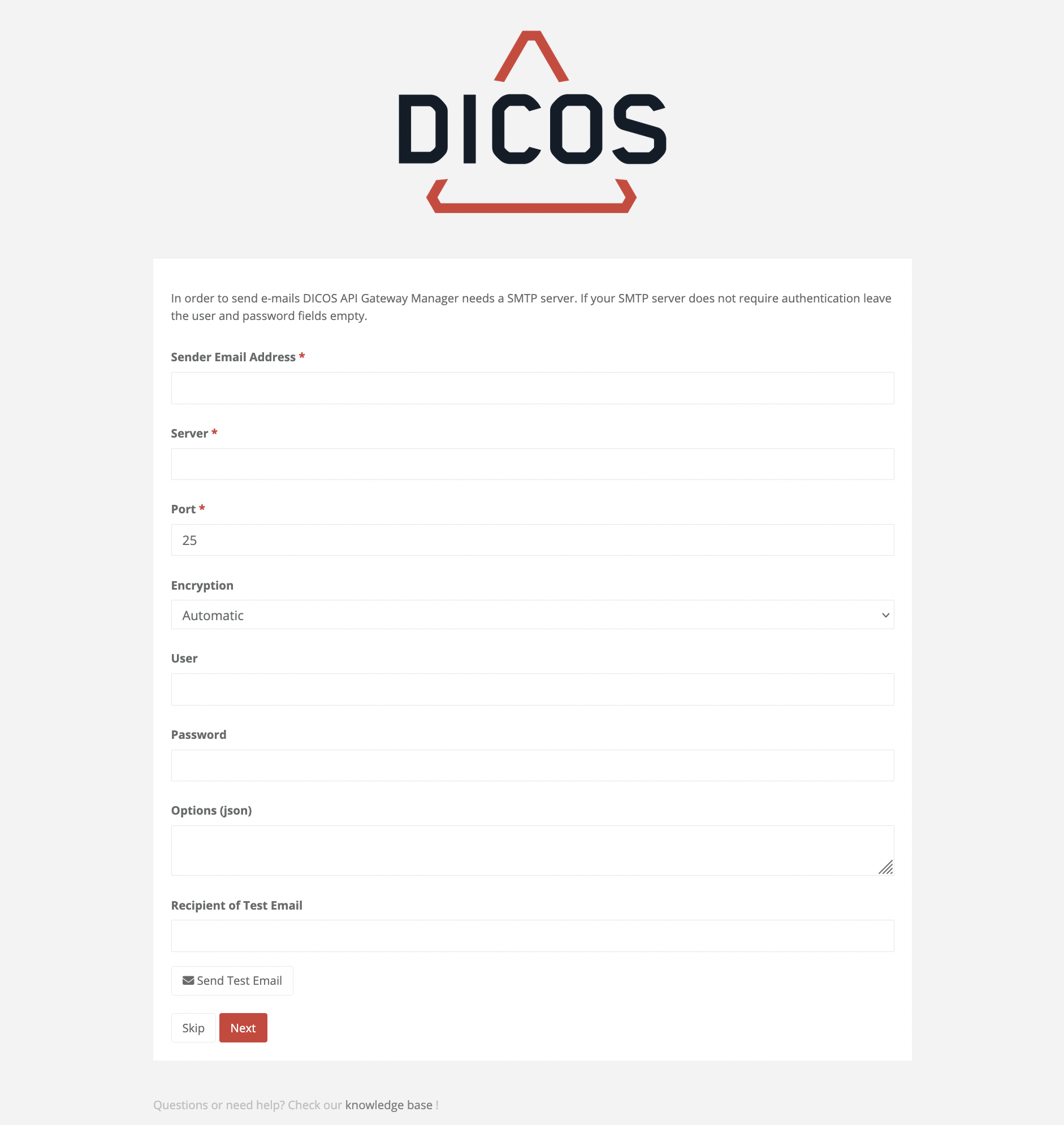
- Sender E-Mail Address
- Mandatory field
- Email account of correspondent SMTP connection. This email address will be set as sender address by DICOS API Gateway Manager
- Server
- Mandatory field
- SMTP server address as hostname or IP-address
- Port
- Mandatory field
- Port of SMTP server, mostly used
- Encryption
- Mandatory field
- User
- Username for authentication
- Password
- Password for authentication
- Recipient of Test Mail
- If you want to test your configuration, insert an existing target email address for test purposes
- Button: Test Configuration
- Test your configuration. DICOS API Gateway Manager will send a testmail to the defined email-address in the filed "Recipient of Test Mail”
For more information click here: SMTP
Click Next (or click Skip if you want to configure your SMTP connection later)
Step 4: Register your first Layer7 API Gateway node
In this step, you can connect DICOS API Gateway Manager to one of your Broadcom Layer7 API Gateways. Restman needs to be deployed to the gateway. Make sure, you provide DICOS API Gateway Manager with the correct port and username and password needed to call Restman. If your gateway is not ready yet, feel free to skip this step. You can always add additional nodes later.
Note: Please ensure you have properly set up the Layer7 API Gateway as described in section Prepare the Gateway, before registering it in the DICOS API Gateway Manager. You will need to have installed the gateway internal RESTMAN service, as well as the DICOS Solution Kit, in order to connect to the Gateway, discover API services and receive metrics data.
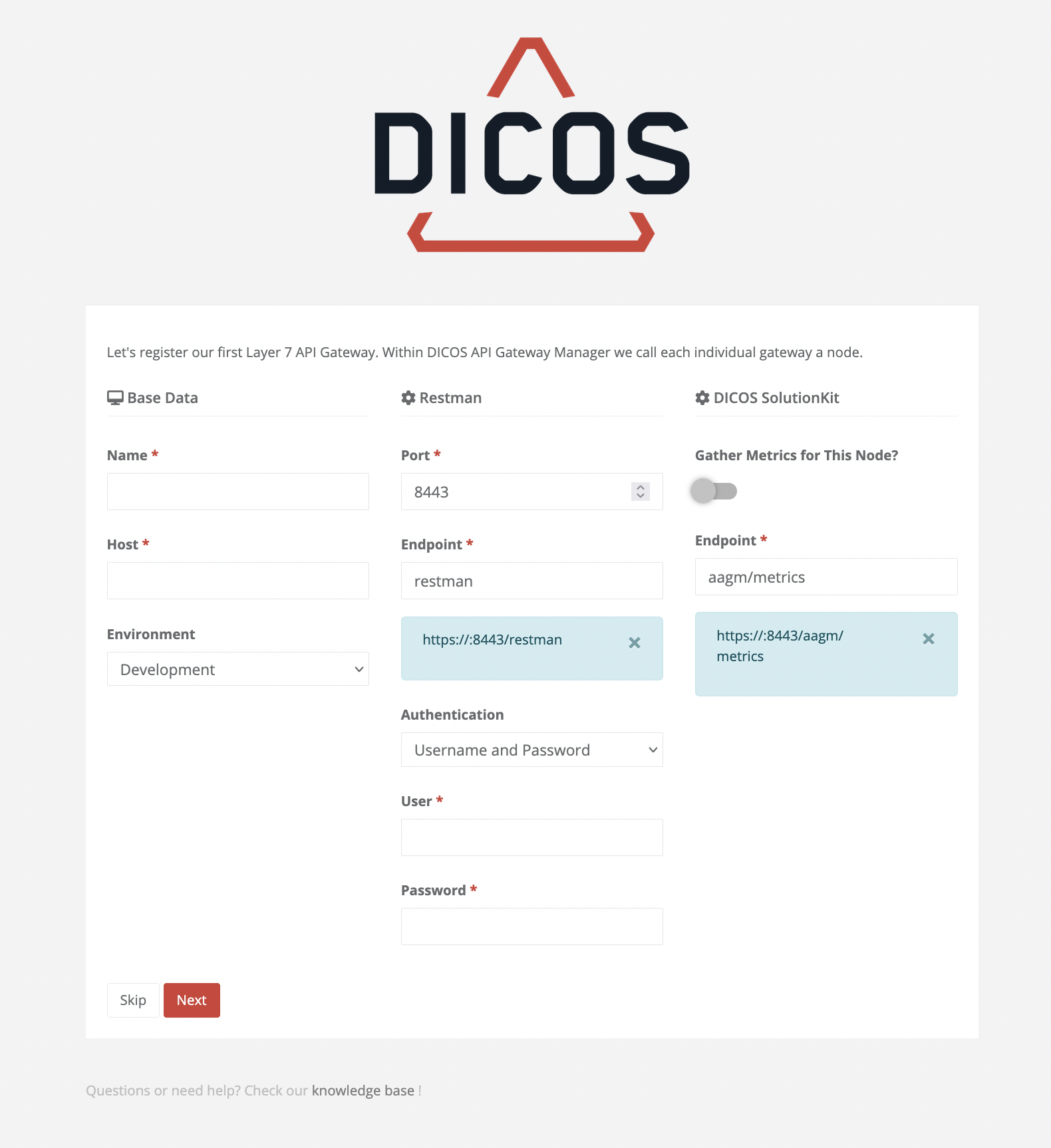
Provide the following information
Base Data
General information on Gateway
- Name
- The name of the gateway must be unique and also plays a role in SMTP.
- Host
- Hostname or IP-address of the Gateway
- Environment and Cluster
- Define the environment or the cluster the node should be a member of. Environments
- Name in Cluster
- If the gateway is in a cluster, you should enter the SSG name here.
- Private node?
- Only you can see your private nodes and perform migrations with them. But administrators can still see these nodes.
Restman
The Restman is our main communication interface to each node. We also support Graphman. This needs to be switched on in the main Configuration features page.
- Port
- Choose on which port Restman should be called
- Default: 9443
- Endpoint
- Provide the name of the endpoint of the Restman service
- Default: restman
- Authentication
- Username and Password
- User
- User to call Restman on the Gateway (e.g. admin)
- Password
- Password for the user
- User
- Certificate
- Certificate upload
- Certificate file
- Certificate Password
- Password for the Certificate
- Certificate upload
- Username and Password
DICOS Solution Kit
In order to receive and display the metrics of the nodes and to be able to alert to irregularities, the connection to the DICOS Solution Kit must be available.
- Gather Metrics for this Node?
- Select if you want to gather metrics from the Gateway
- URL
- Define the endpoint of the DICOS Metrics API
- Default: aagm/metrics
Click Next to start the gateway registration process
Upon successful completion of the registration process, you will see the following message.
Step 5: Set up your Monitoring default alarm thresholds
To get meaningful data right from the start, this step allows you to set some simple default response time thresholds. You can configure more sophisticated defaults later.
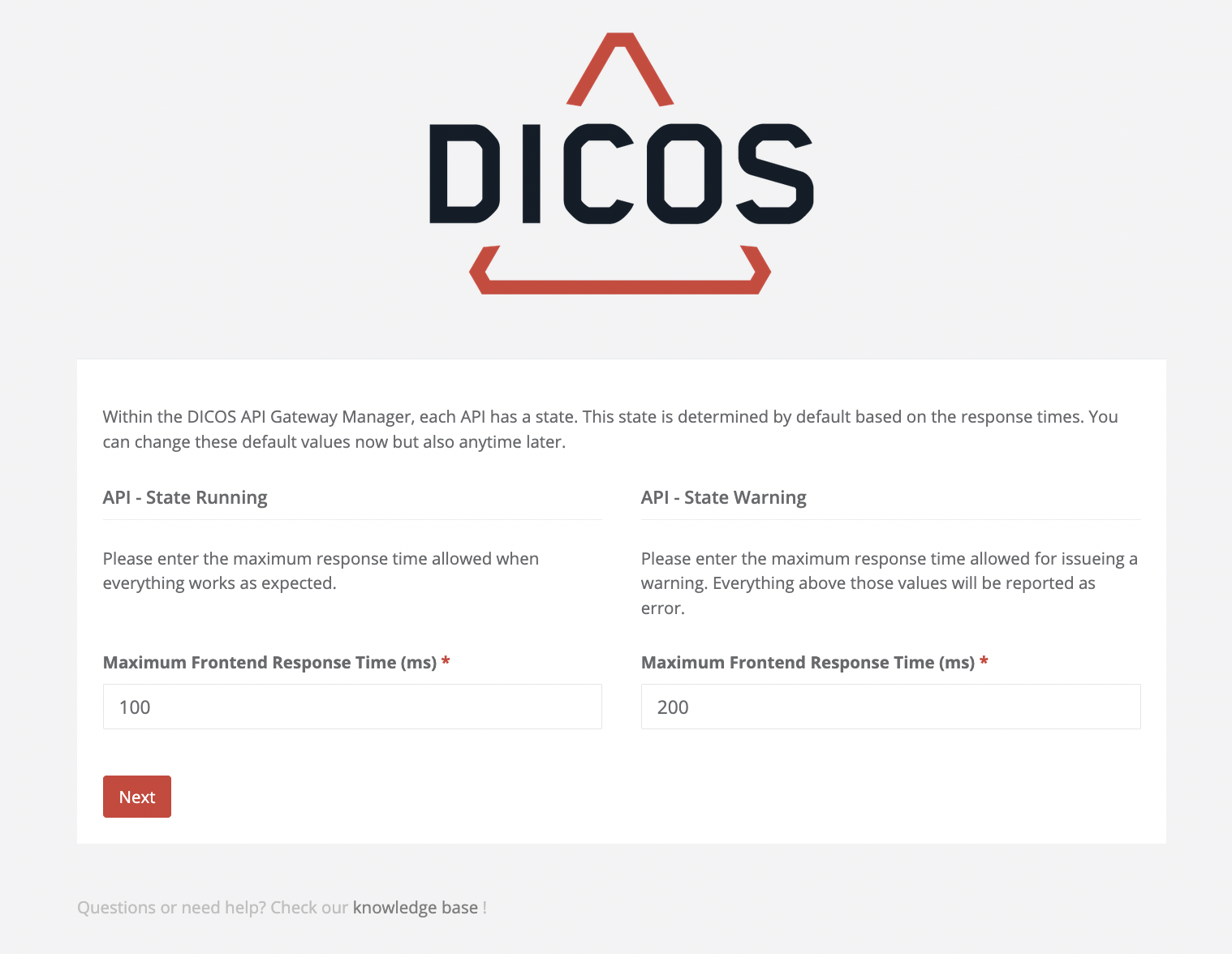
Click Next
Done!
Congratulations, you finished the First Run Wizard and are ready to manage and monitor your Layer7 API Gateways. Clicking on Next, automatically logs you in and redirects you to a preconfigured dashboard.
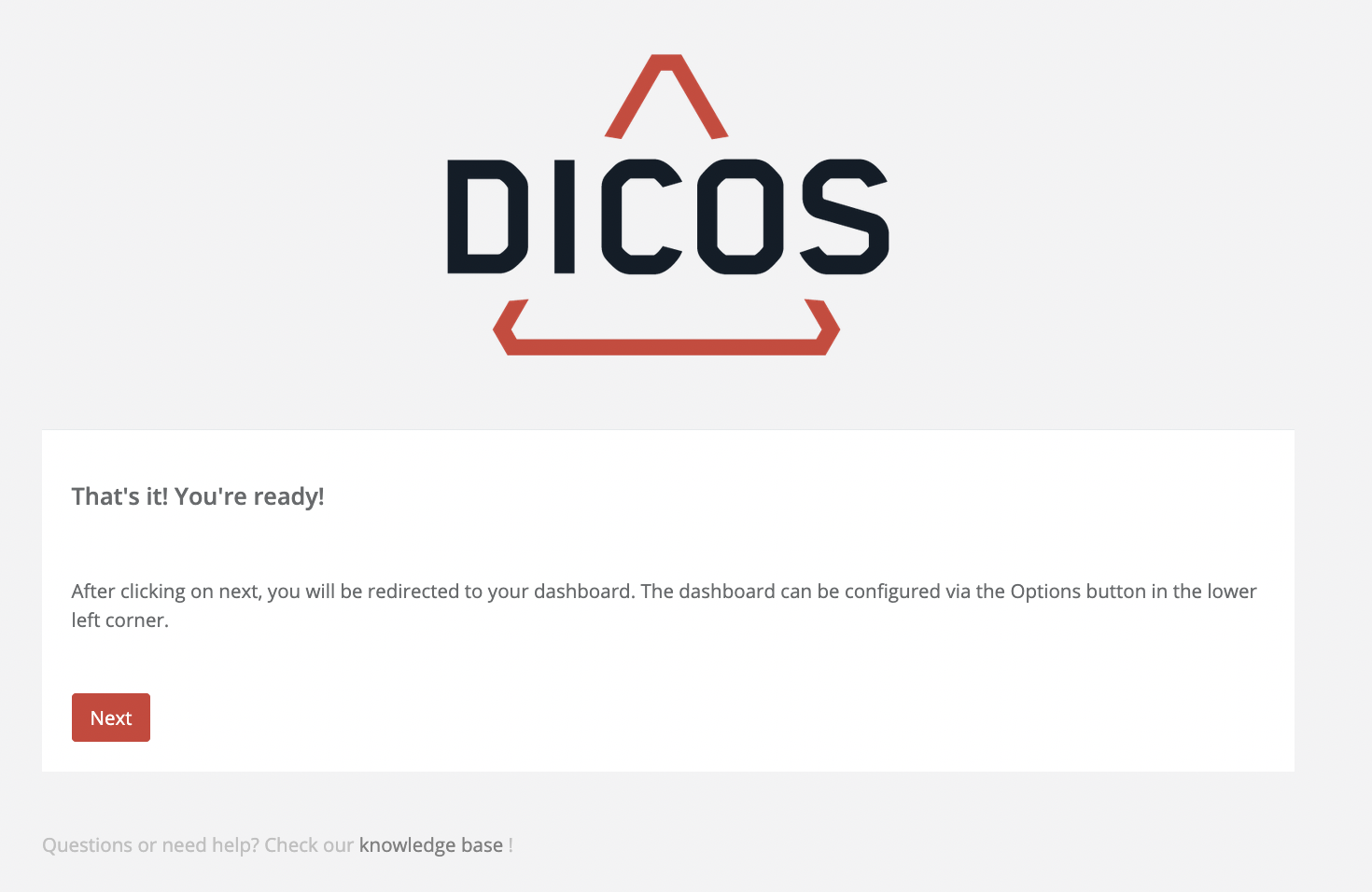
The installation of the Gateway Manager is complete!